
New in Pax Contacts: See Who Is Waiting on You
Pax Contacts is rebuilt around one question: who is waiting on you? Every person you work with now gets one ledger across your email, LinkedIn and the other tools you connect, so you can track professional relationships without keeping a spreadsheet.
This post covers what is new and, step by step, how to use each part. To click through it yourself, open the working Contacts screen in our product docs.
What is new in Pax Contacts
- Waiting on you: every open ask in one list, with the channel it came from.
- Rhythm and the ledger: how often you talk, who owes what, and how many promises were kept.
- What Pax knows: the facts Pax learned about a person, each with Right and Fix.
- Likely duplicates: matched records you can merge or keep apart, then undo later.
- Schedule a meeting: book time from a profile, straight to Google Calendar.
- Relationship map: the people you know, grouped by company.
How to see who is waiting on you
- First, open Contacts in the sidebar.
- Then read the Waiting on you card at the top of the overview.
- Finally, work the list from the top: reply, or book time from their profile.
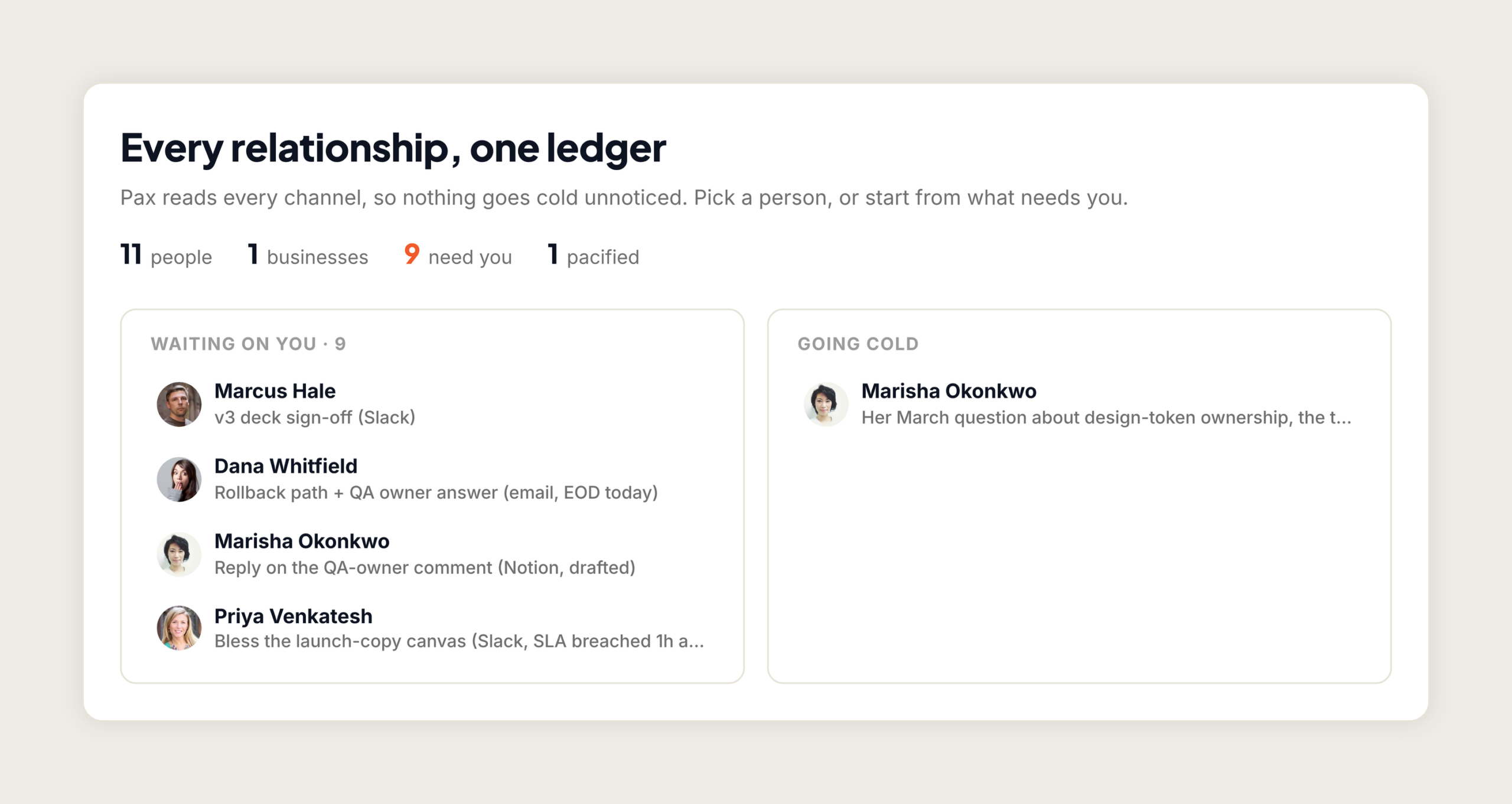
The overview opens on Waiting on you, with Going cold beside it.
In addition, each row names the person, what they need and where they asked. That matters because asks get buried. Microsoft’s data from its own users shows the average worker gets 117 emails a day and 153 Teams messages each weekday.
How to track professional relationships from one profile
- First, click any contact in the list.
- Next, check Rhythm to see how often you talk and whether the pace is steady.
- Then read The ledger: what you owe them, what they owe you, and their record on promises.
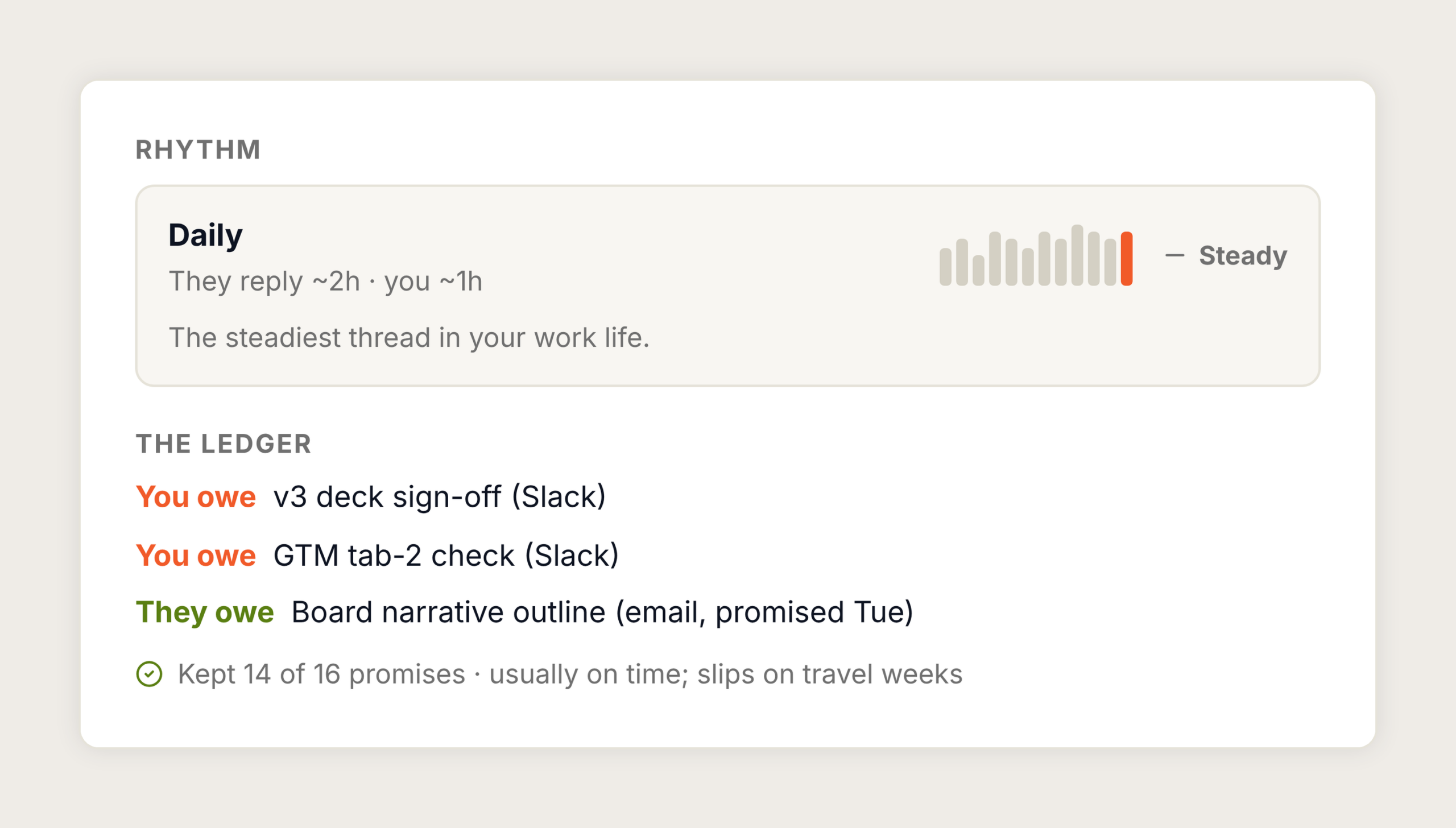
Rhythm and the ledger on a contact's profile.
How to correct what Pax knows
- First, scroll the profile to What Pax knows about them.
- Next, read the evidence and the confidence under each fact.
- Finally, click Right to confirm a fact, or Fix to correct it.
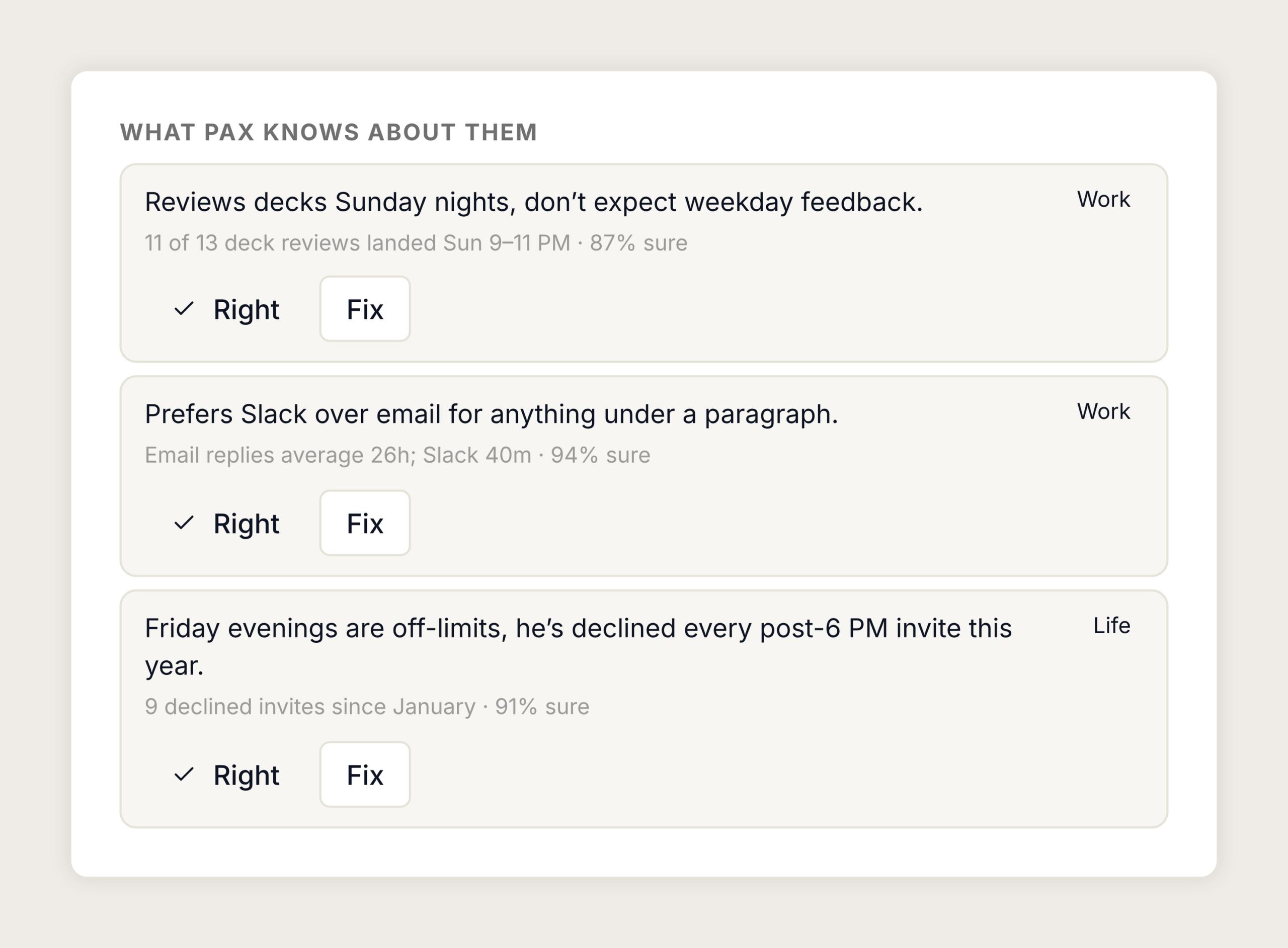
Each fact shows its evidence and how sure Pax is.
How to merge duplicate contacts
- First, click Likely duplicates under Lists and groups.
- Next, read the match score and the reason Pax gives for each pair.
- Then click Merge to fold the history, ledger and memory into one person, or click Keep separate. Either way, you can undo the choice later.
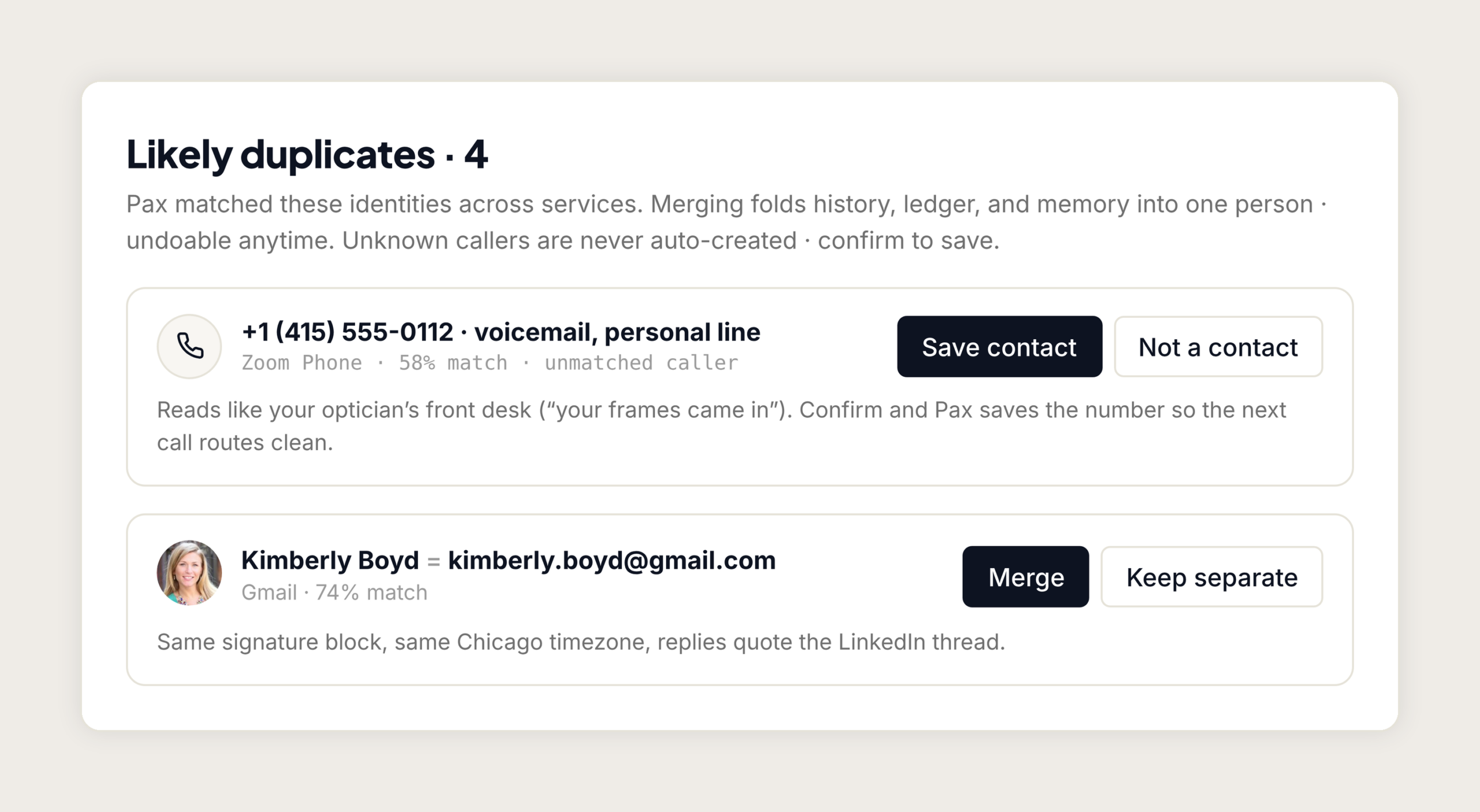
Likely duplicates shows the match score and the reason for each pair.
How to book a meeting from a contact
- First, open the contact and click Schedule a meeting.
- Next, let Plan with Pax find a time that fits everyone, or pick the day, time and length yourself.
- Finally, click Find a time, then send. The event lands on your Google Calendar.
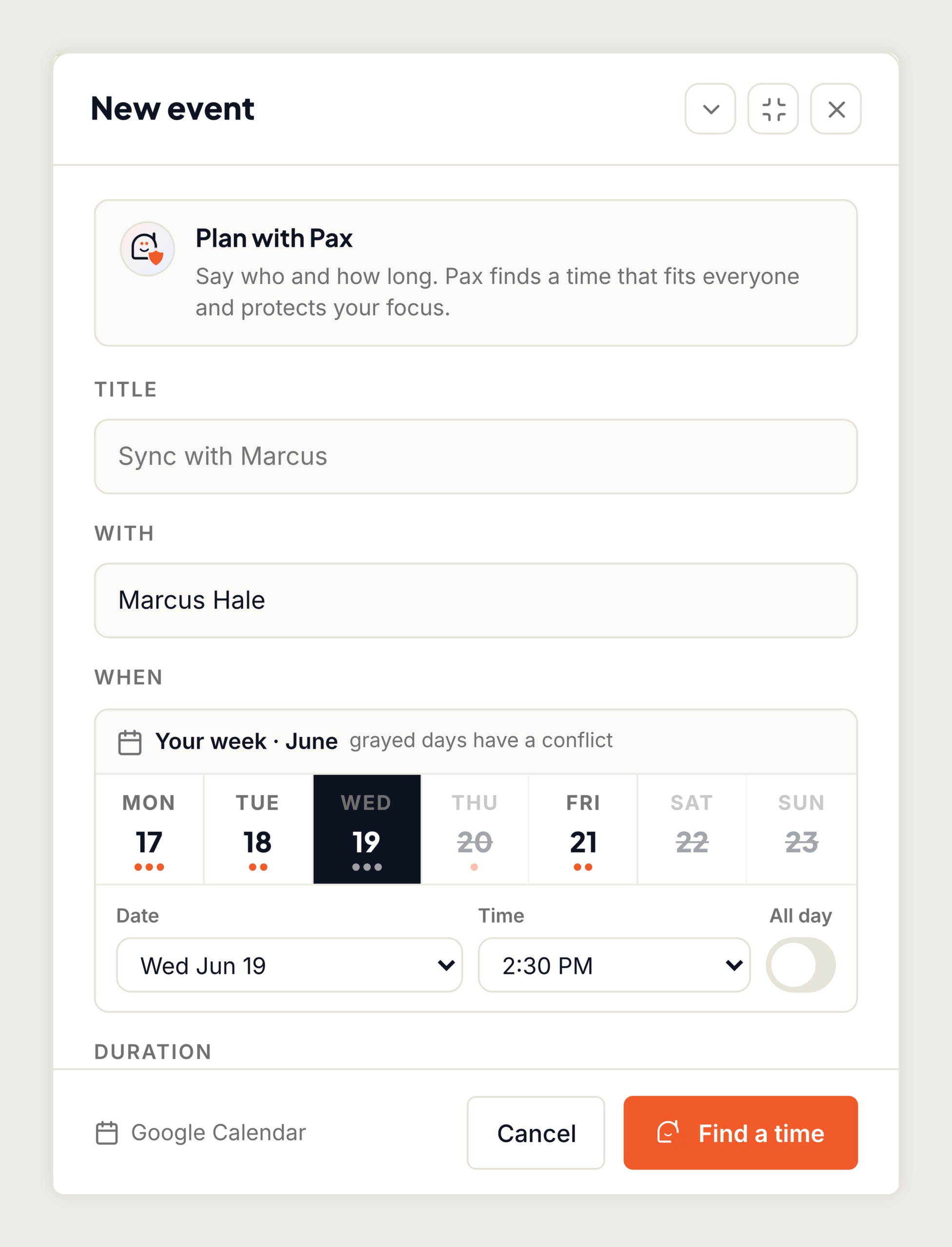
The New event window opens right from the profile.
How to see who knows whom
- First, click Relationship map at the top of Contacts.
- Then read the chart: everyone you know, grouped by company.
- When you are done, click List view to go back to your contacts.
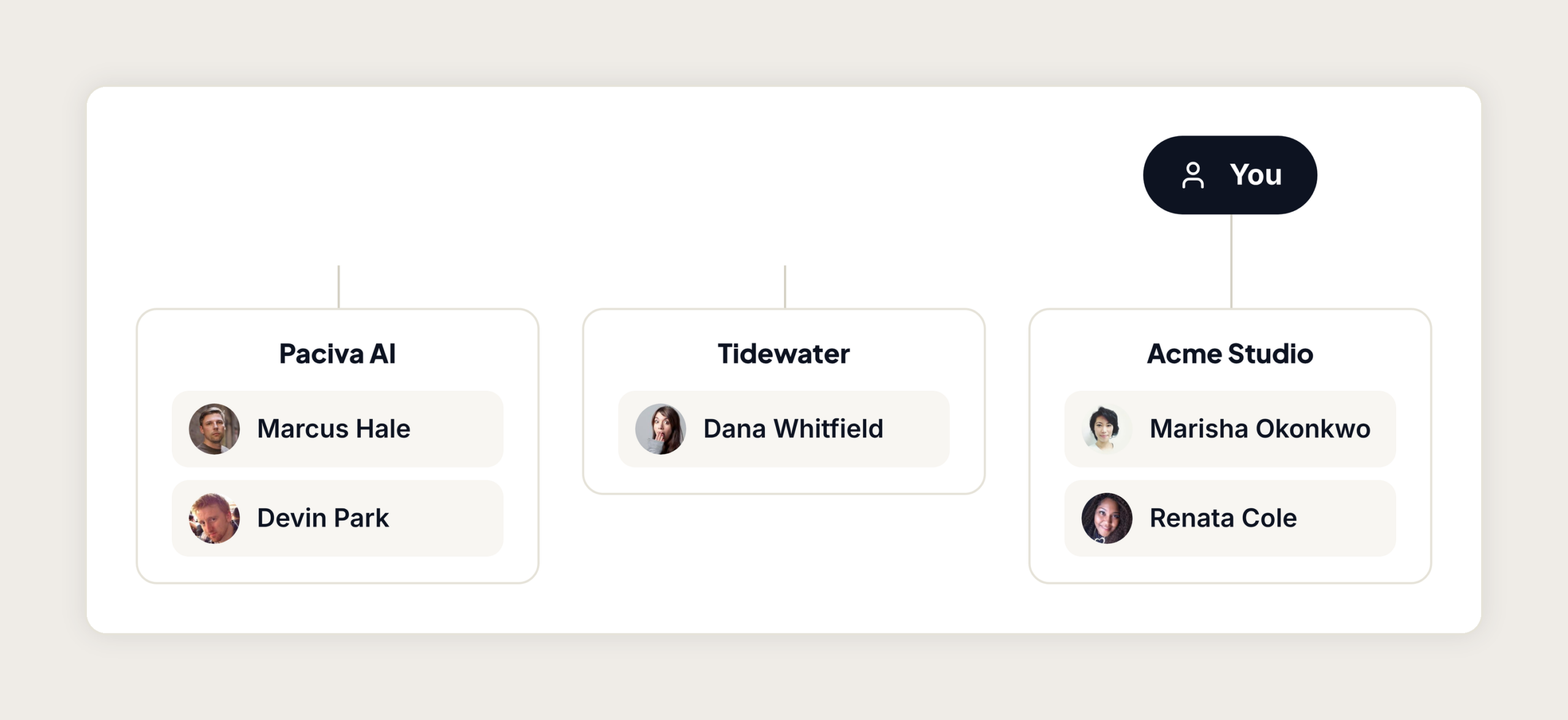
The relationship map groups your contacts by company.
What is still rolling out
However, two parts are partial today. Pipeline from your CRM depends on which CRM you connect and what that link can read. A shared company map that joins every teammate’s relationships into one view is still being built.
A five-minute routine to track professional relationships
So, try this every Monday morning:
- Answer or book the top three in Waiting on you.
- Send one short note to someone in Going cold.
- Merge the pairs in Likely duplicates that are clearly one person.
- Press Right or Fix on one key profile.
- Book one meeting from a profile.
Above all, step two is worth the minute. In a study of 129 executives who asked old, out of touch contacts for advice on a work project, the help they got compared well with what current contacts gave.
Do Big Tech and Frontier AI Labs Owe America More Than Profit?
Big tech responsibility in the age of AI goes beyond profit. Should the firms that built our digital world help defend it from AI cyber attacks?
I Gave My AI Too Many Rules. It Stopped Doing Anything.
My AI social pipeline failed almost every post because I gave it too many rules. Here is how to write AI instructions that get real work done.
Choose an AI work skill by testing what the task needs
Before you book more AI training, test what the task needs. Some gaps need practice. Others need missing facts or a decision. A returns queue shows how.
The Week in AI: Nov 7 to Nov 13, 2026
Nvidia names Colette Kress interim CEO after Huang resigns, trump suggests Tim Cook for Nvidia CEO role, and more of the AI news from Nov 7 to Nov 13.