How to create shared calendars in Microsoft Teams

Table of Contents
Microsoft Teams is the go-to work messaging and video conferencing app for
280 million daily users, likely in part because it’s easy to sync with Outlook and other tools in the Microsoft 365 suite.
Like Teams, shared calendar apps can make planning and collaboration quick and easy, especially when teammates work across time zones and locations. Multiple users can view and edit the same calendar to collaborate on projects, manage schedules, and track important events.
Your team already uses Microsoft Teams to communicate and collaborate — can you use it to share calendars, too? The answer is yes, and there are a few ways to do it.
This guide teaches you four ways to share a Microsoft Teams calendar:
-
Share a built-in calendar in Teams
-
Create a Teams channel calendar
-
Add a SharePoint calendar to a Microsoft Teams channel
-
Make shared calendar collaboration easier with Calendly
The types of Microsoft Teams calendars you can create
Before you can share a Microsoft Teams calendar, you need to create one. (If you already have a calendar in mind, skip to the next section.) If you’re starting from scratch as a new user or want to make a calendar for a new project or team, you have to choose between three types of calendars: Built-in calendars, channel calendars, and SharePoint calendars.
The in your Microsoft Teams account syncs with your Outlook Calendar and vice-versa. If you spend most of your time in the Teams app, the built-in calendar is a quick reference point where you can also create new events.
The built-in Teams calendar only features daily and weekly views, so it isn’t ideal for long-term planning. For example, if you want to plan project milestones for the quarter, you’ll probably want to work in your Outlook calendar, then reference your built-in Teams calendar for day-to-day events.

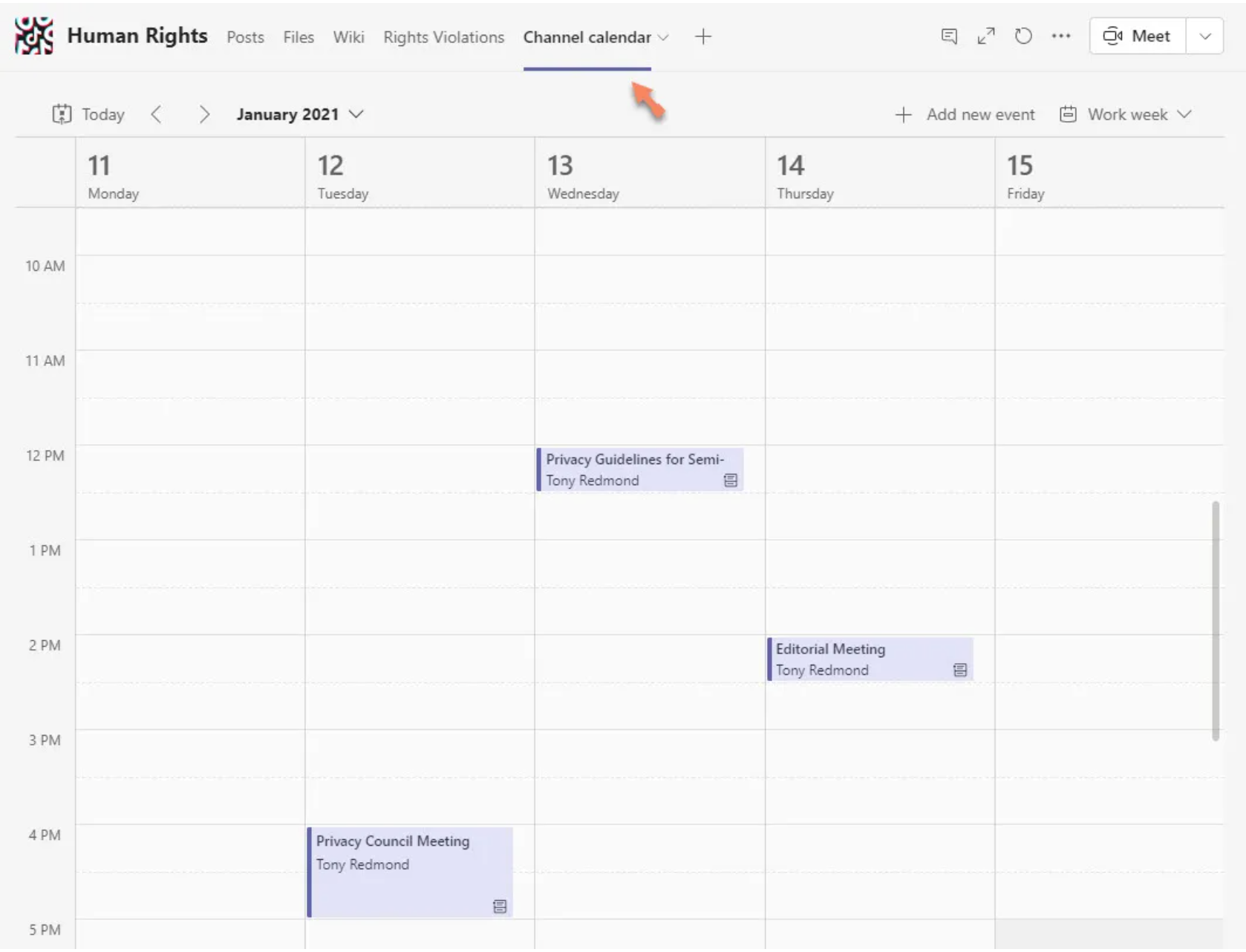
Teams are specific to a channel. The channel calendar is a good option for small teams that want to manage multiple projects and events in a single channel. This setup can get unwieldy if you’re on a large team (like an entire sales department) that uses many different channels.
Channel calendars automatically notify the channel of new events, so nobody misses a meeting. Channel calendar events can only be created in Teams, but once created, the events will sync to your Outlook calendar.
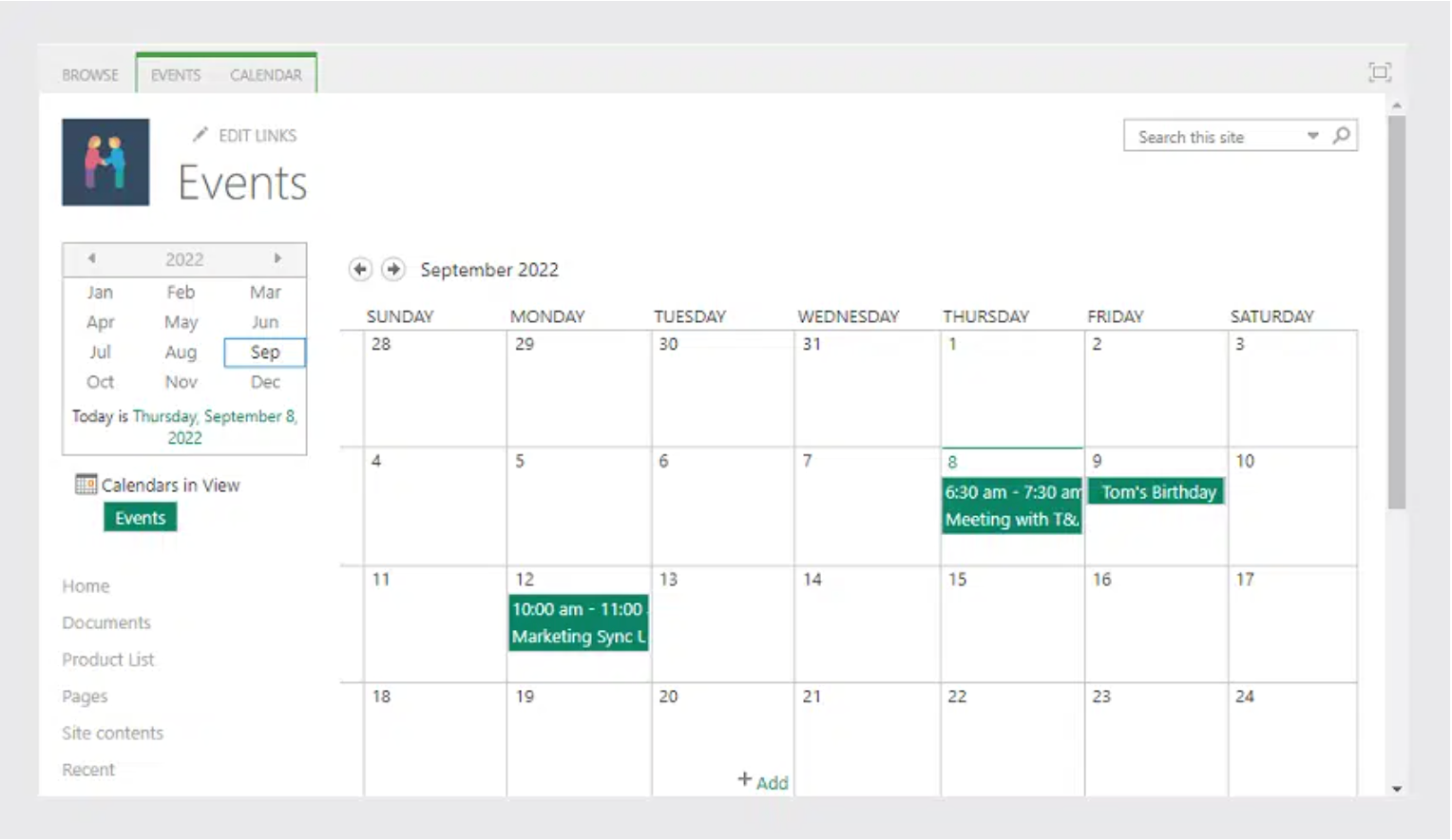
Finally, Microsoft SharePoint is a tool that allows teams to create secure, private websites to organize and share information. For example, a marketing team could create a centralized hub for a new campaign with inspiration, launch schedules, and links to metric dashboards. You can embed your SharePoint Shared calemdars into Microsoft Teams channels.
The shared calendar in SharePoint has a monthly view that can show events from multiple calendars (like for different projects) and color code events. The only catch to using the added functionality is that it takes a few extra steps to embed into your Teams account (we’ll cover that in the next section).
How to create shared calendars in Microsoft Teams
How you share a calendar on Microsoft Teams and who you can share it with depends on the type of calendar you use.
Here’s what you need to know to get started.
Share a built-in calendar in Teams
The built-in calendar on your Microsoft Teams account syncs with your Outlook calendar to give you a quick, week-at-a-glance reference point.
If you want to give someone else permission to edit your built-in Teams calendar, you have to
share your Outlook calendar with them. Then, if your teammate adds a new event to the shared Outlook calendar, it’ll appear in your built-in Teams calendar.
How to share your Outlook calendar:
-
Open your Microsoft Outlook calendar
-
Click Share in the upper right corner
-
Enter your teammate’s email address and select their access level
 Sales automation helped reps move faster, then it flooded inboxes and crushed trust. Here are eight ways it now hurts pipeline, deliverability, and brand, plus fixes.
 Sales automation helped reps move faster, then it flooded inboxes and crushed trust. Here are eight ways it now hurts pipeline, deliverability, and brand, plus fixes.
 Cold outreach automation keeps escalating as tools get cheaper and smarter. Learn why inbox noise grows, spot it fast, and protect real signal for the long run.